
User guide
How to use Whaily
Eleven steps, in the order you will do them. Every screen below is the real product.
Start free · What each feature does · MCP setup
- 01
Sign in
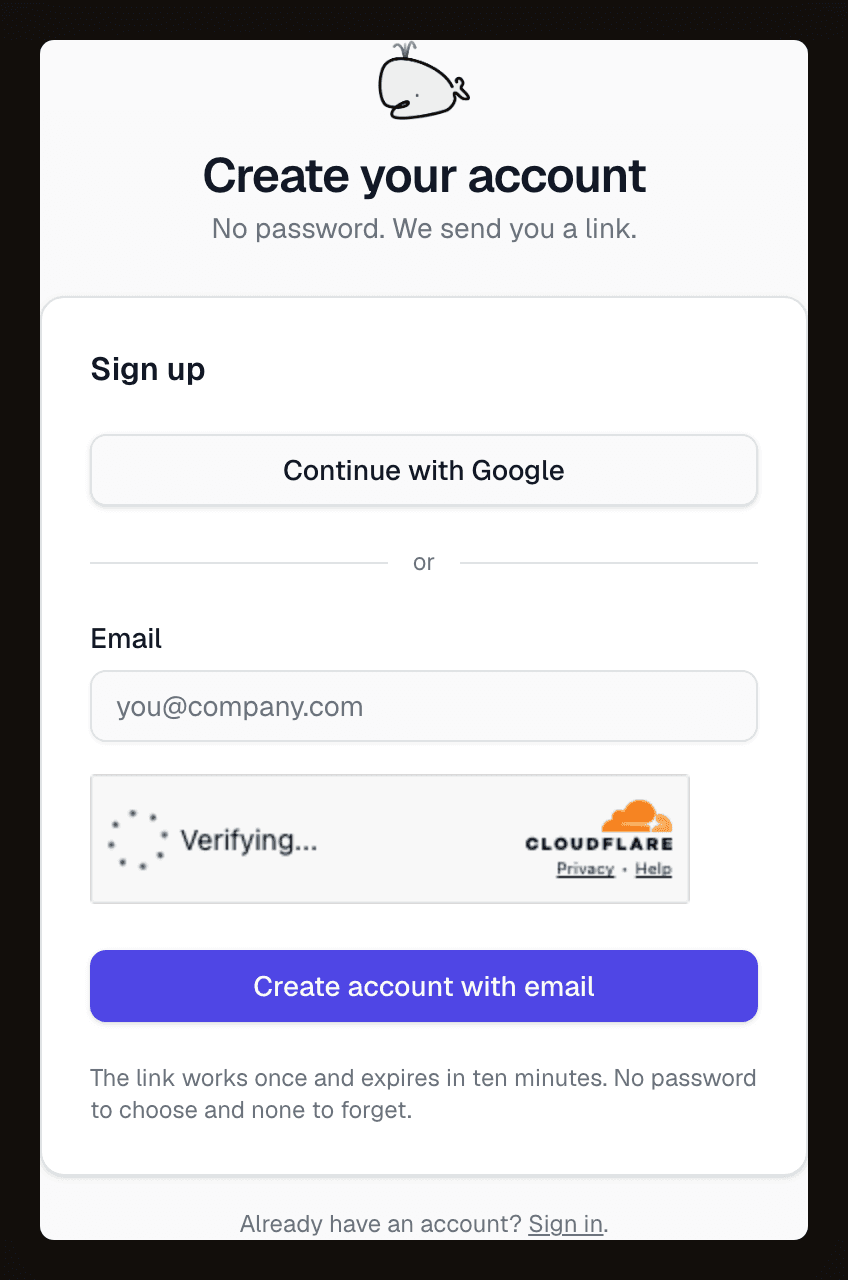
Use Google or an email link. There is no password to choose, and the first brand is set up from your domain.
whaily.com/signup
- 02
Add the questions your buyers ask
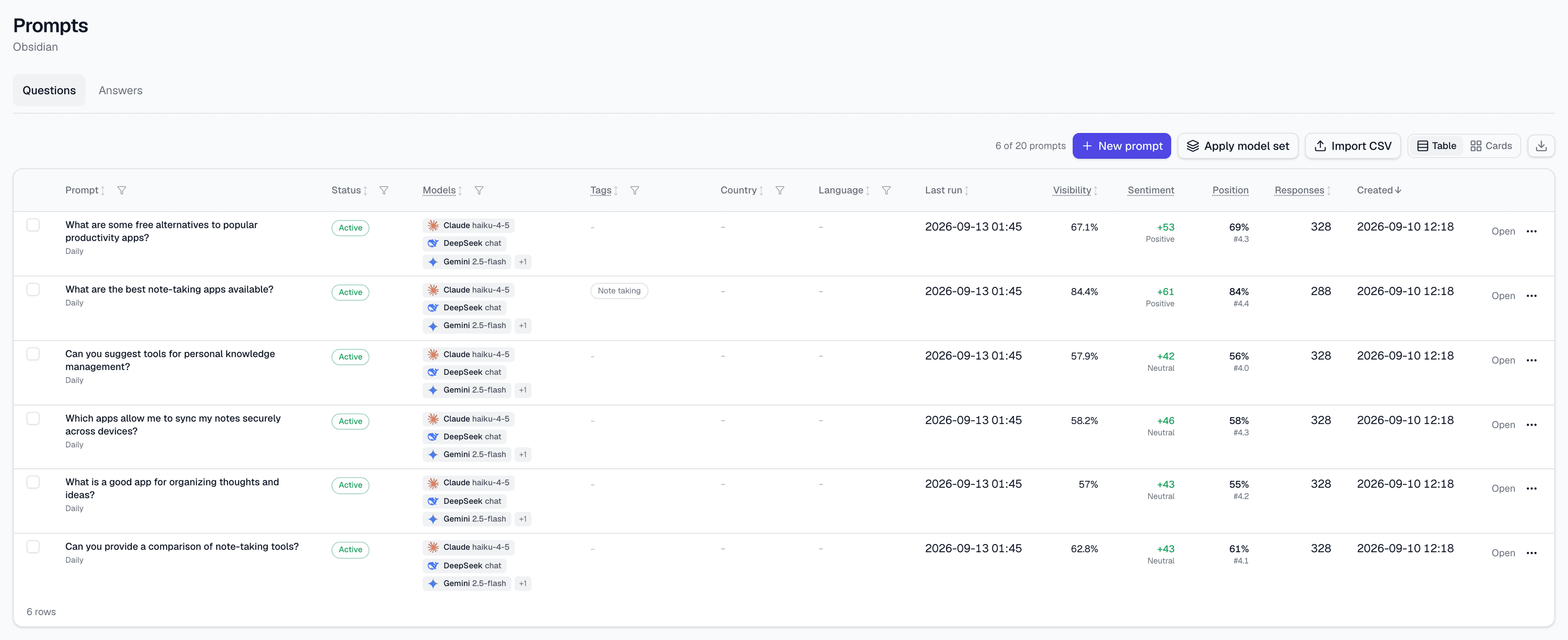
Type prompts in one at a time, or import a CSV. Each one runs on a schedule and keeps its answers.
Prompts
- 03
Pick the models
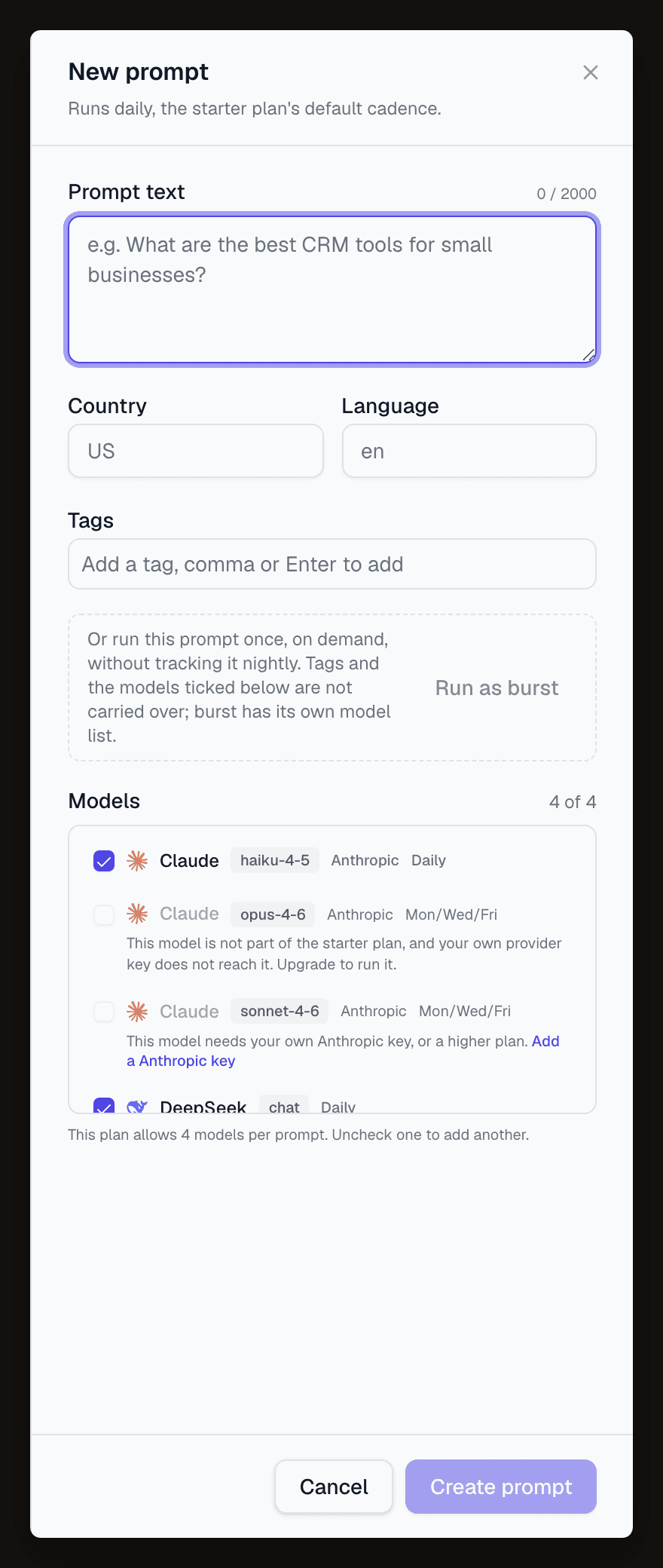
Tick the models each prompt should run on. A model your plan does not include says so, and links to where you add your own provider key.
Prompts, New prompt
- 04
Read your visibility
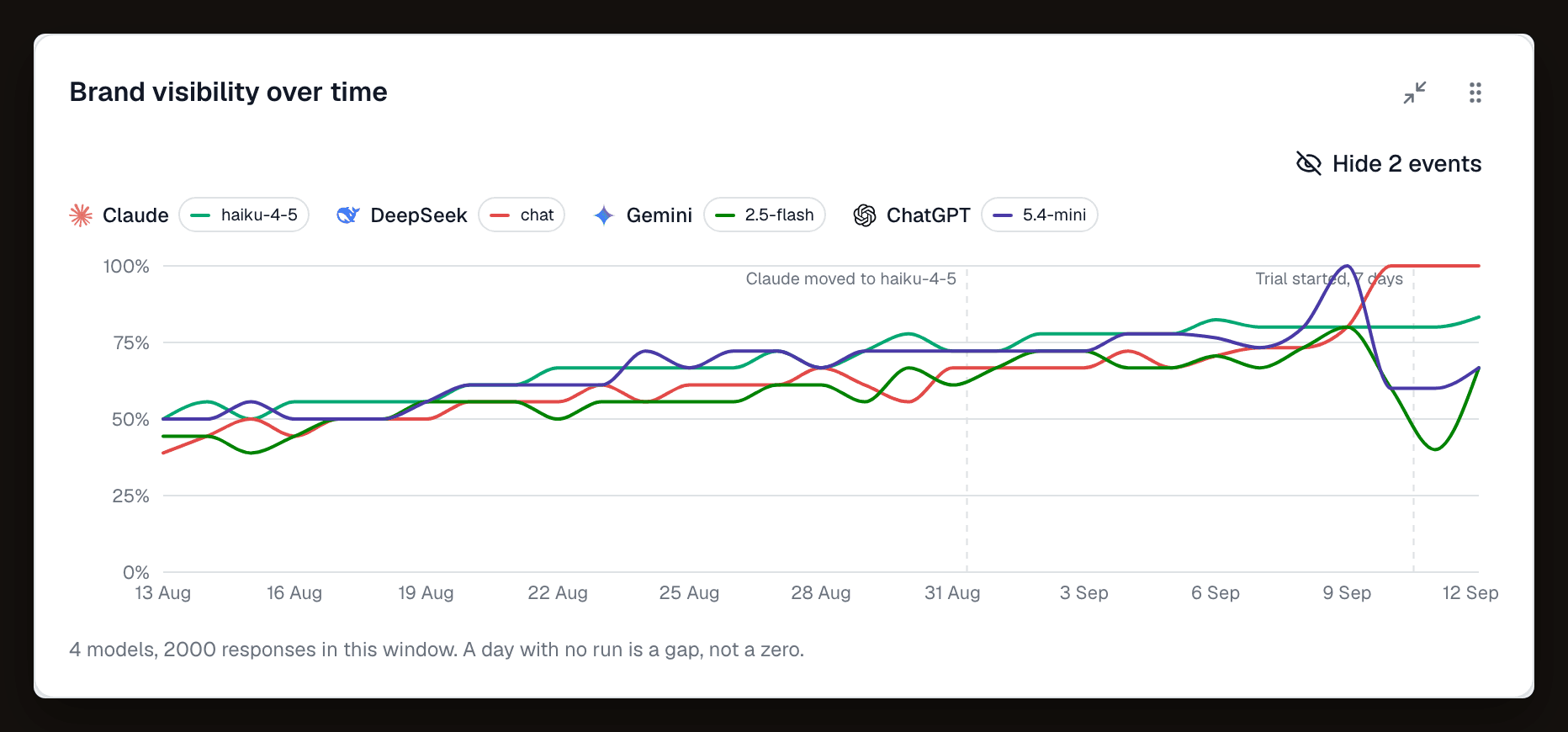
The share of answers that name your brand, day by day, one line per model. A day with no run is a gap, never a zero.
Overview
- 05
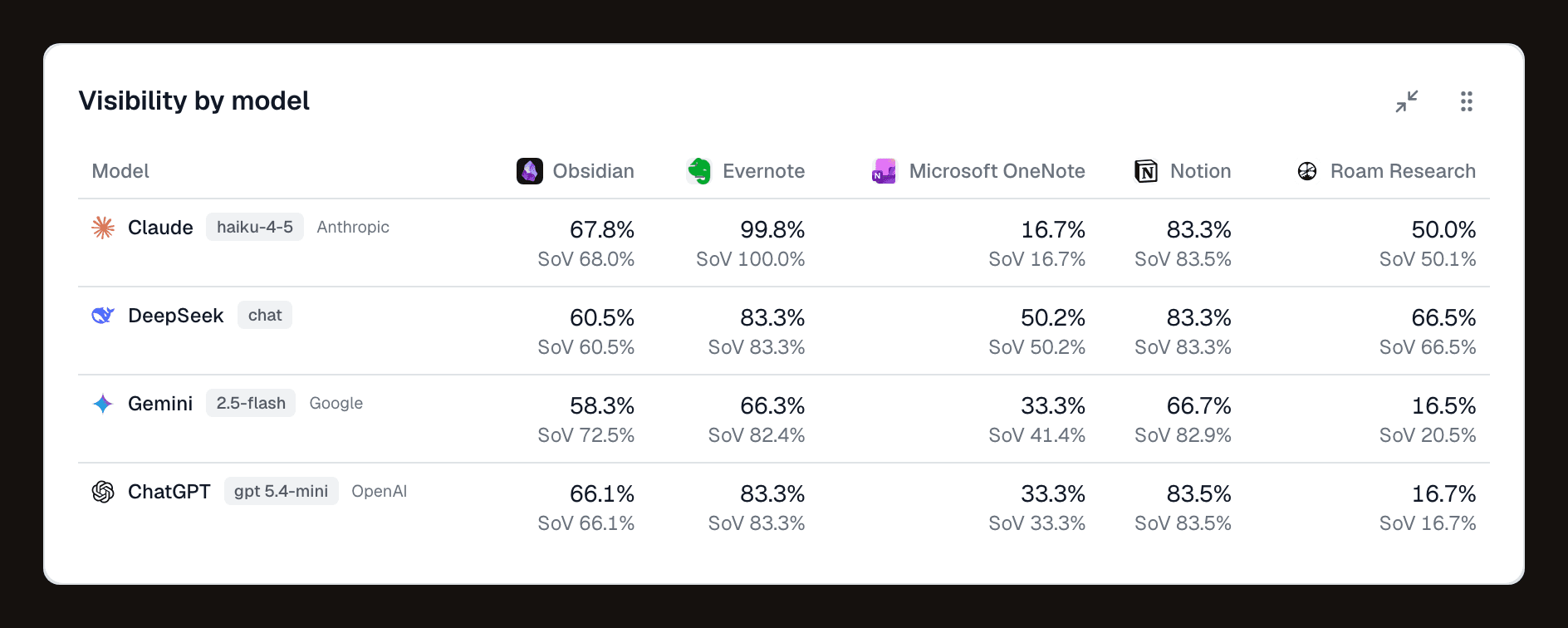
See which model is the problem
The same number per model and per competitor. One model can be far behind the rest, and that is the one to work on.
Competitors, Standing
- 06
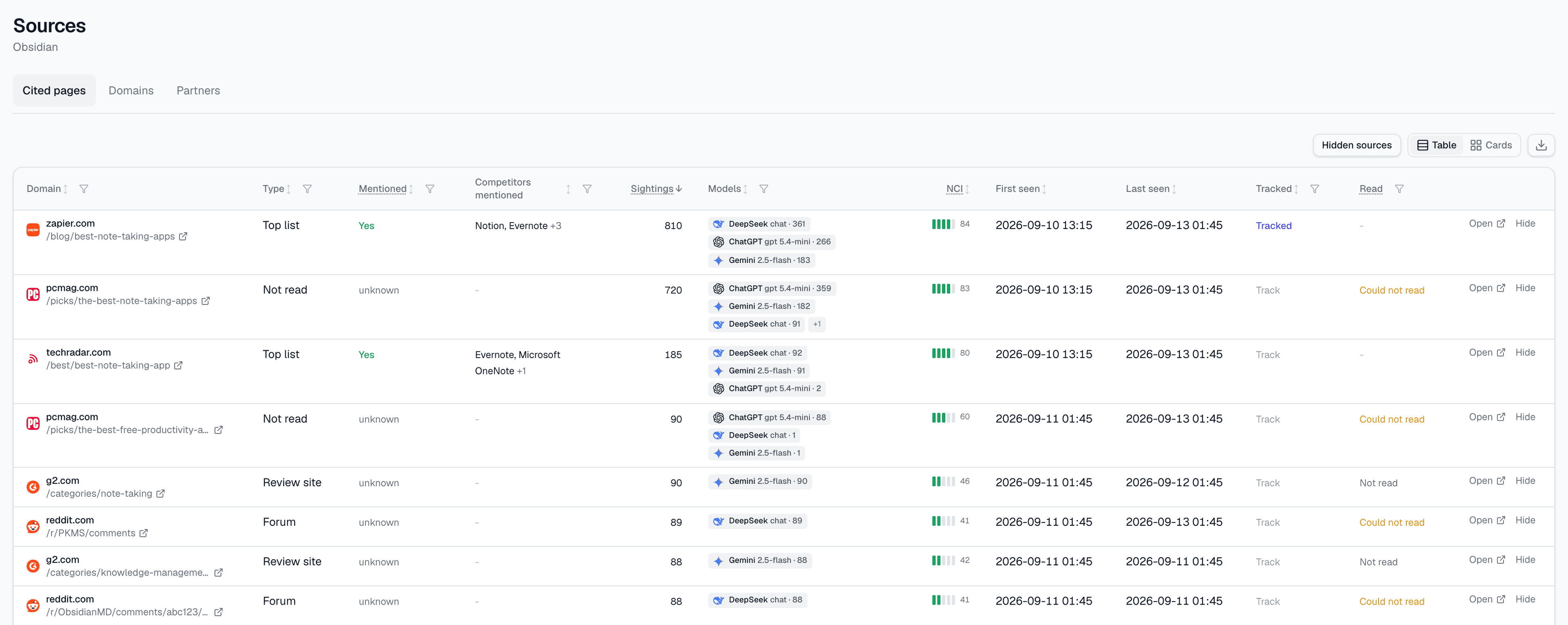
Find the pages AI cites
Every page a model linked to as a source, with whether it names you and which competitors it names.
Sources
- 07
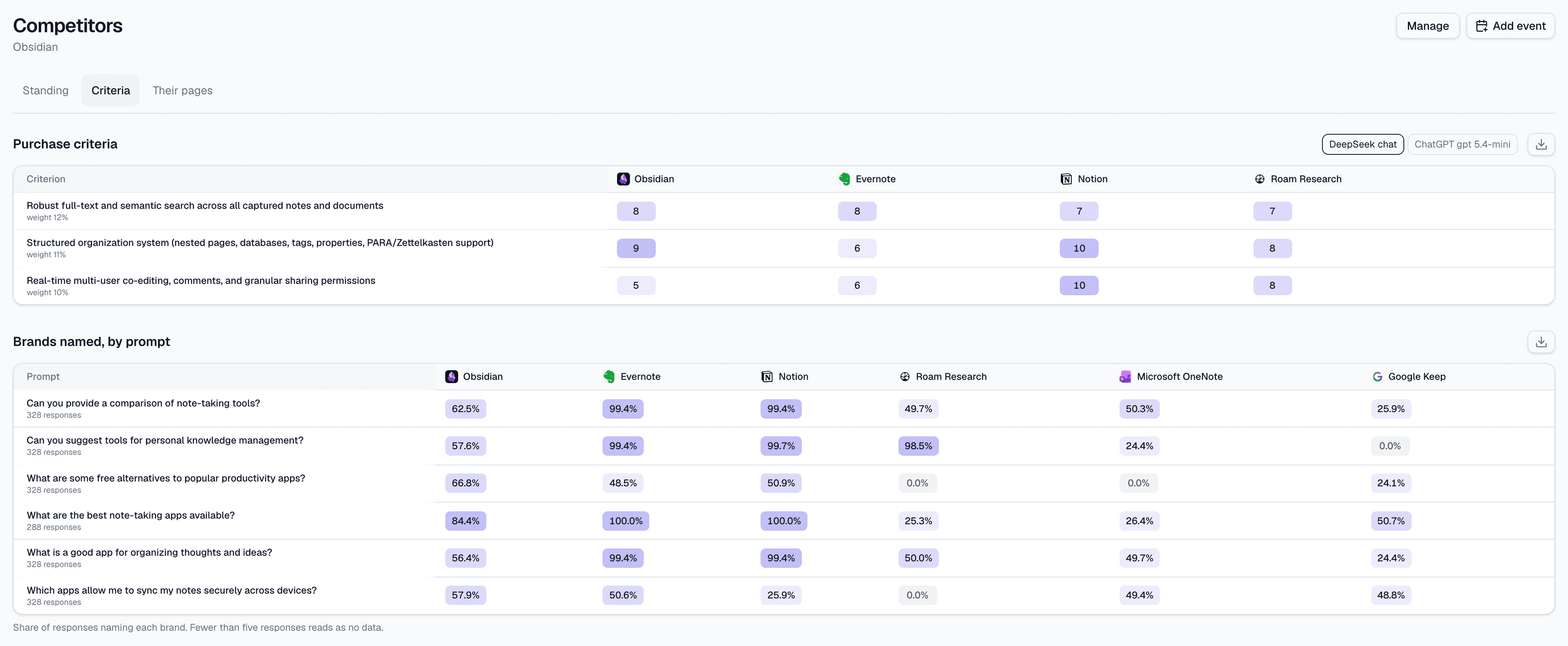
Compare against competitors
The criteria buyers weigh in your category, scored per brand by each model.
Competitors, Purchase criteria
- 08
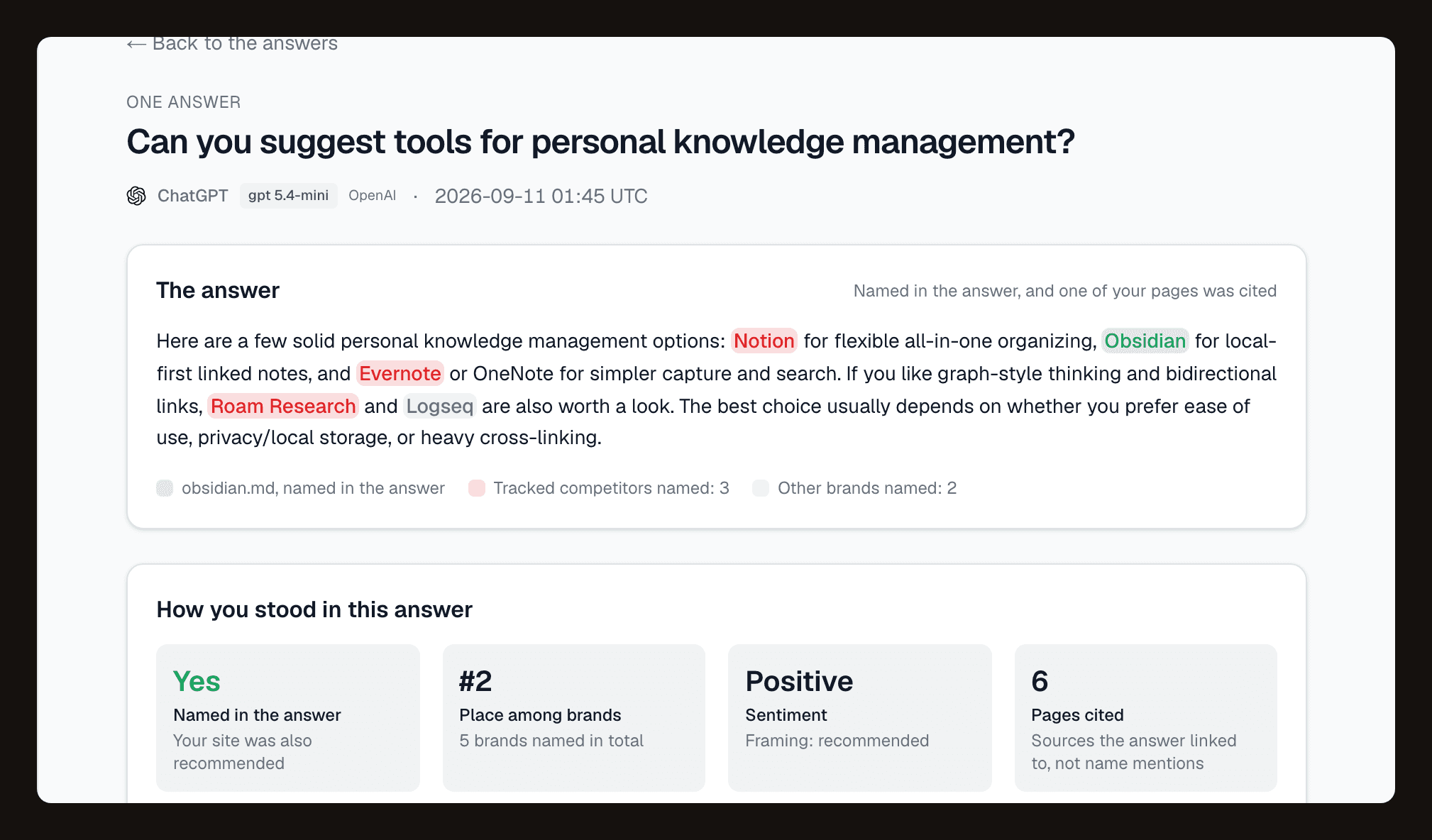
Read the answer itself
Every answer is kept. The card shows the model, whether you were named and the brands it did name; open it for the whole answer, the order it named them in and the pages it cited.
Prompts, Answers
- 09
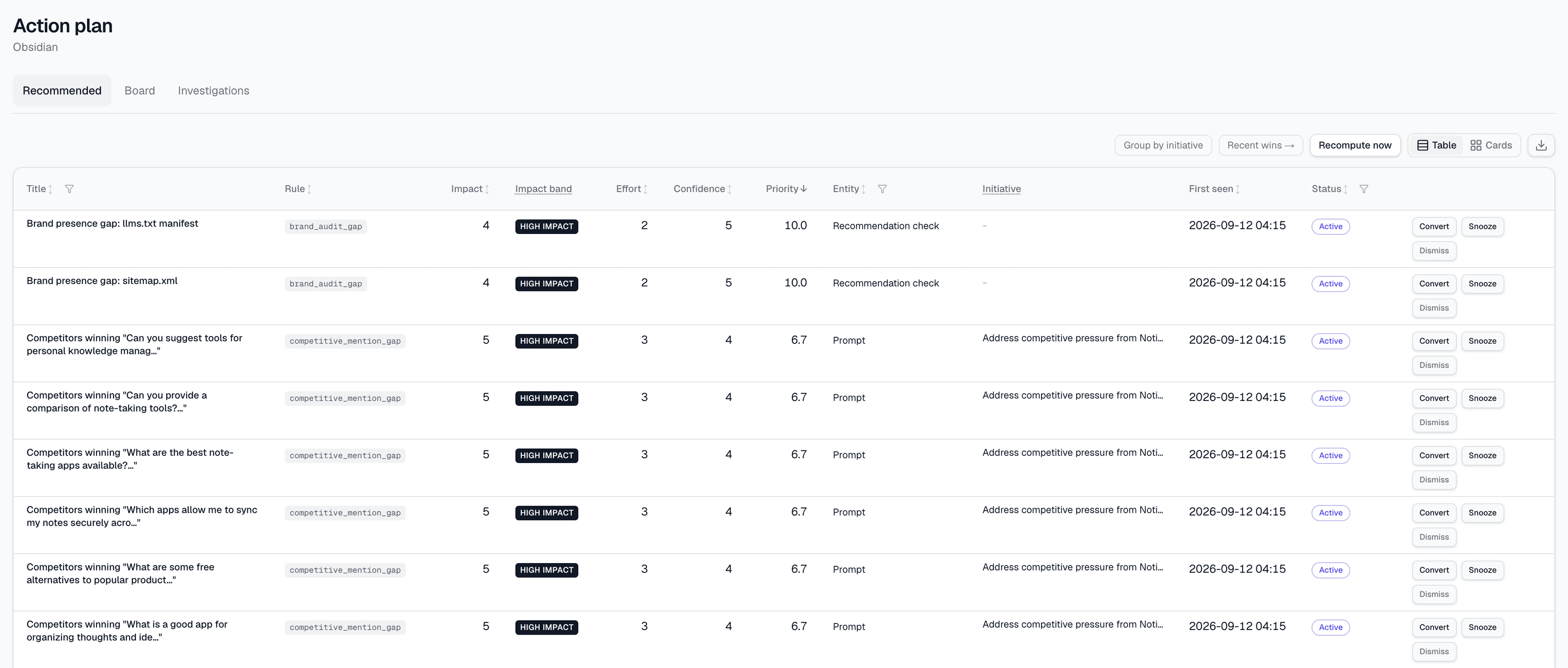
Work the action plan
The page opens on the five highest priority findings from the newest run, each as a card saying what it found and why it matters. Open one to read it in full, then accept it and it becomes an action item on the board with an owner and a due date.
Action plan
- 10
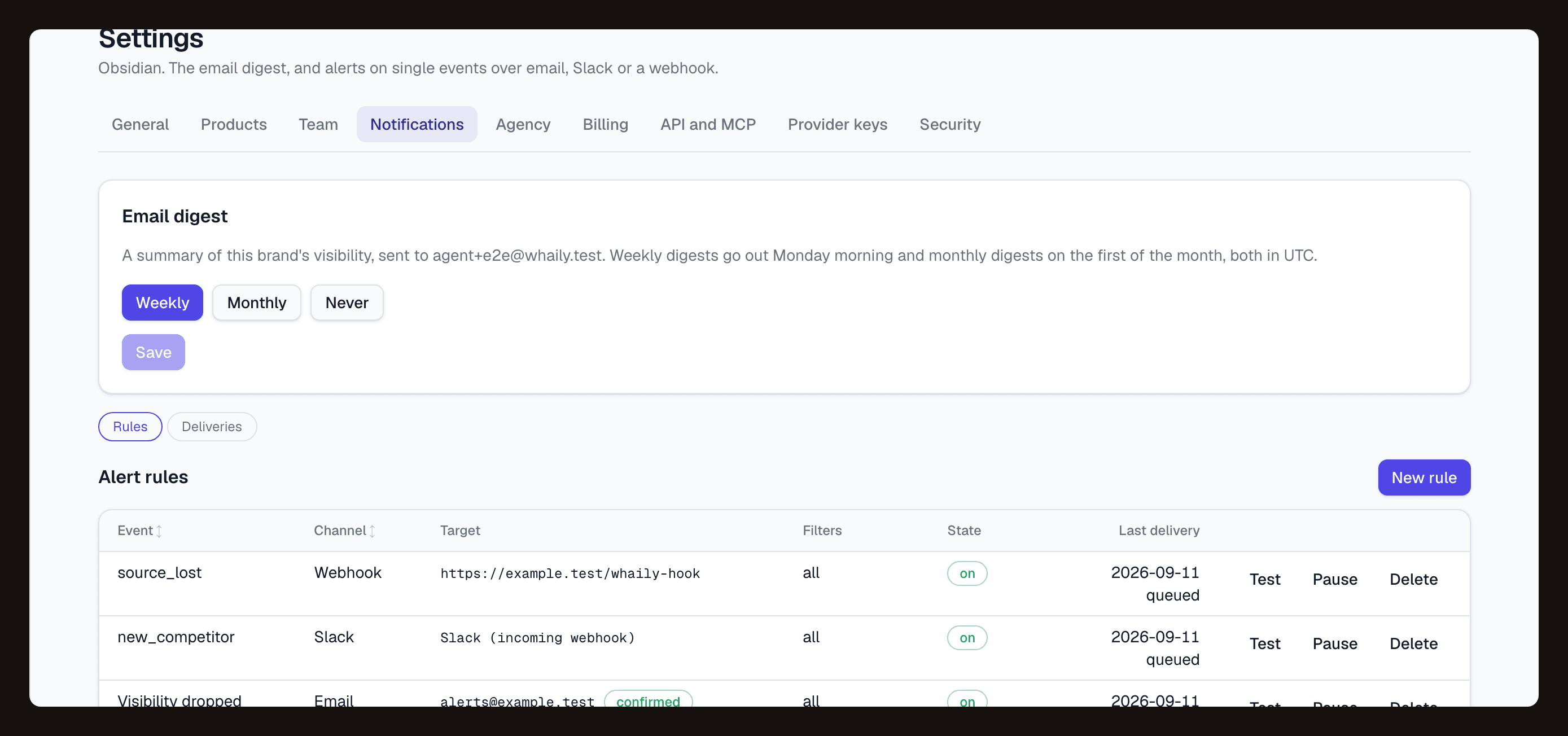
Get told when it moves
Set alert rules per event, to email, Slack or a webhook, plus a weekly or monthly digest.
Settings (the gear beside your brand), Notifications
- 11
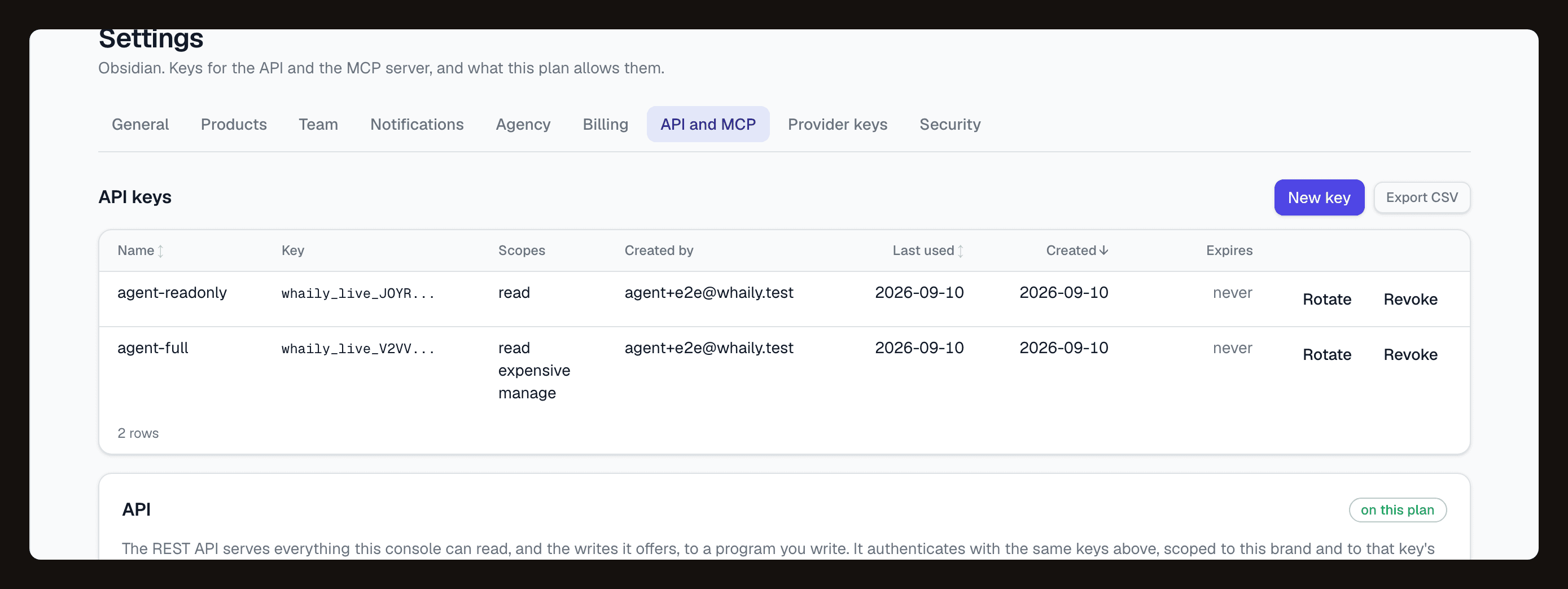
Connect it to your own tools
Create a key to reach the REST API, or point Claude or Cursor at the MCP server and ask it the same questions.
Settings (the gear beside your brand), API and MCP
Two things worth knowing
- A number with too few answers behind it reads N/A rather than a percentage. Whaily never rounds a small sample into a claim.
- Being cited and being named are different. A model can build an answer on your page and name three competitors in the text; the product says which of the two it is showing.